How-To Guides

Practical, step-by-step instructions for the most common things you'll do in DevBox Pro.

🚀 Creating a Laravel Project

Laravel is one of the most popular PHP frameworks. Here's how to set one up.

  1. 1

    Make sure PHP and Composer are downloaded

    Open Binary Manager and ensure you have at least one PHP version (8.2 or higher recommended) and Composer downloaded.

  2. 2

    Click "+ New Project"

    On the Dashboard, click the "+ New Project" button. In the dialog:

    • • Set Project Type to "Laravel"
    • • Choose a folder for your project
    • • Select your PHP version (e.g., PHP 8.4)
    • • Set your domain (e.g., mylaravel.test)
    • • Enable MySQL or MariaDB if your app needs a database
  3. 3

    Wait for installation

    DevBox Pro will automatically run Composer to install Laravel, generate your app key, install npm dependencies, and create a database. You'll see real-time progress.
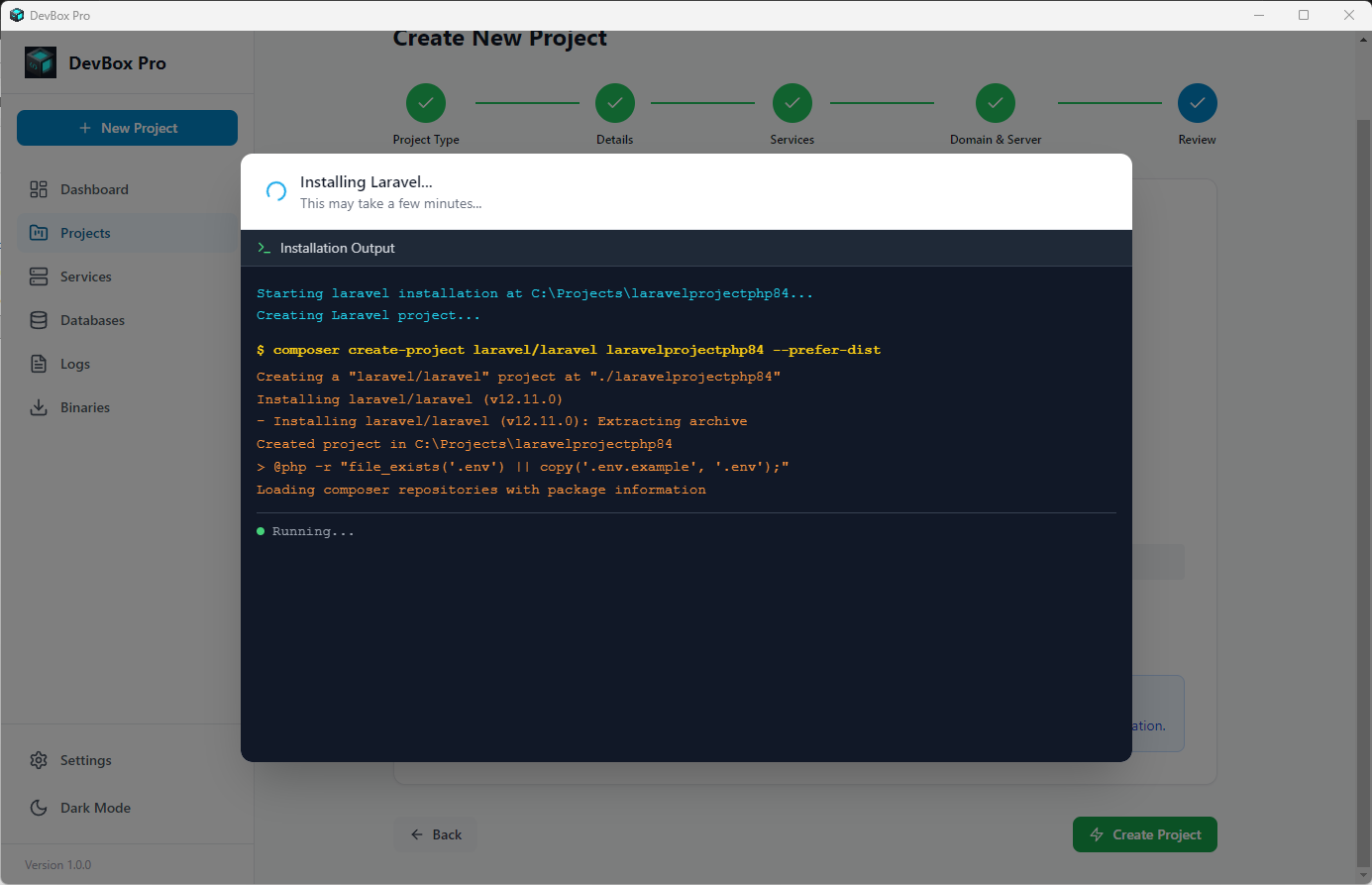
    Laravel installation progress
    Real-time installation progress for a Laravel project
  4. 4

    Start and visit your project

    Click "Start" on the project card, then open https://mylaravel.test in your browser. You should see the Laravel welcome page!

📝 Setting Up WordPress

Create a local WordPress site for development and testing.

  1. 1

    Create a new WordPress project

    Click "+ New Project" and set the type to "WordPress". Choose PHP 8.2 or 8.3 (WordPress works best with these). Enable MySQL and set your domain (e.g., myblog.test).

  2. 2

    Wait for download

    DevBox Pro downloads the latest WordPress automatically and creates your database.

  3. 3

    Run the WordPress installer

    Start the project, then open https://myblog.test. WordPress will show its famous 5-minute installation wizard. Fill in your site title, username, and password.

  4. 4

    Start building!

    Your WordPress admin panel is at https://myblog.test/wp-admin. Install themes, add plugins, and customize your site — all running locally on your computer.

🟢 Creating a Node.js Project

Set up an Express, Next.js, or any Node.js application.

  1. 1

    Download Node.js

    Open Binary Manager and download the Node.js version you want (Node.js 24 LTS is recommended).

  2. 2

    Create a Node.js project

    Click "+ New Project" and set the type to "Node.js". Choose your Node.js version and domain. DevBox Pro will configure Nginx to reverse proxy requests to your Node.js app.

  3. 3

    Start your app

    Use the built-in terminal or any external terminal to run your app's start command (e.g., npm run dev). Visit https://myapp.test to see it in action.

💡

Tip: When you create a Node.js project, DevBox Pro sets up the reverse proxy automatically so your Node.js app is accessible via a .test domain — just like PHP projects.

💾 Managing Databases

Create, import, export, and browse your databases.

Creating a Database

Go to the Databases page in the sidebar. Click "+ Create Database", enter a name, and choose which database server to use (MySQL, MariaDB, or PostgreSQL). The database is created instantly.

Importing Data

If you have an existing database backup (a .sql or .sql.gz file), click the import button next to a database. Choose your file and DevBox Pro will import it with a progress bar for large files.

Exporting a Backup

Click the export button next to any database to download a backup. You can choose to compress it as a .gz file to save space.

Using phpMyAdmin

For a visual way to browse tables and run queries, start phpMyAdmin from the Services panel. It will open in your browser at http://localhost:8080. Log in with username root and no password.

Database management interface
The database management interface — create, import, and export with ease

🔒 Setting Up SSL (HTTPS)

Get secure HTTPS working for your local projects.

  1. 1

    SSL is automatic

    When you create a project, DevBox Pro automatically generates an SSL certificate for your .test domain. No action needed from you.

  2. 2

    Trust the certificate (one time)

    The first time you use HTTPS, your browser may show a security warning because the certificate is self-signed (generated on your computer, not by a company like Let's Encrypt). To fix this:

    • 1. Go to Settings in DevBox Pro
    • 2. Click "Trust SSL Certificate"
    • 3. Approve the Windows administrator prompt
    • 4. Restart your browser

    After this, all your .test domains will show a green padlock — no more warnings!

💻 Using Terminal Commands

Run PHP, npm, and database commands from any terminal.

  1. 1

    Enable the CLI tool

    Go to Settings → CLI Tool in DevBox Pro and toggle on "Terminal commands".

  2. 2

    Restart your terminal

    Close and reopen your terminal (VS Code, PowerShell, or Windows Terminal) so it picks up the new commands.

  3. 3

    Navigate to a project & run commands

    Use cd to enter a project folder, then use commands as normal:

    cd C:\Projects\my-app
    php artisan migrate
    composer install
    npm run dev
    mysql -u root

    DevBox Pro automatically detects your project and uses the correct PHP/Node.js version.

🌐 Sharing on Your Local Network

Let others on your Wi-Fi network see your project.

This is useful for testing your website on a phone, tablet, or another computer connected to the same network (Wi-Fi).

  1. 1

    Enable network sharing

    Open your project in DevBox Pro and toggle on "Share on Local Network".

  2. 2

    Find your IP address

    DevBox Pro will display your computer's IP address (something like 192.168.1.100).

  3. 3

    Open on another device

    On your phone or another computer, open a browser and go to http://192.168.1.100 (using the IP shown in DevBox Pro). You'll see your project!

⚠️

Note: Windows Firewall may block incoming connections. If the other device can't connect, check that DevBox Pro is allowed through the firewall.

📥 Importing an Existing Project

Bring your existing codebase into DevBox Pro.

If you already have a project directory, you don't need to create a new project. You can import it directly.

  1. 1

    Click "Import Project"

    On the Dashboard or Projects tab, click the "Import" option next to the New Project button.

  2. 2

    Select your folder

    Choose the directory where your existing project is located. DevBox Pro will auto-detect the project type (Laravel, Node.js, etc.).

  3. 3

    Configure Services

    Set your desired PHP/Node.js version, assign a .test domain, and enable any databases you need. Click Import, and your project is ready to go!

🛠️ Managing a Project

Explore the features inside the Project Details page.

When you click on a project card from the Dashboard or Projects list, you'll enter the Project Details page. This page gives you granular control over the project through several tabs:

1. Overview

The central command center for your project:

  • Web Server & PHP/Node Version: Change the assigned framework versions or switch between Nginx/Apache on the fly.
  • Services: Toggle specific databases (MySQL, PostgreSQL, MongoDB, etc.) or caching layers (Redis, Memcached) exclusively for this project.
  • Domains & Network: Add custom domain aliases, change the document root folder, or enable Share on Local Network to test your app from your phone.

2. Terminal

A fully featured, built-in command line interface that automatically opens in your project's folder. Run npm install, composer update, or php artisan commands directly inside DevBox Pro without opening a separate terminal window.

3. Logs

View real-time, consolidated logs for the project. Includes access logs, error logs, and output from any running Node.js process. You can toggle auto-refresh to watch logs stream in live as you develop.

4. Workers

Manage background processes using the built-in Supervisor integration. Add persistent background workers like Laravel Queue workers, Horizon, or any custom long-running scripts (e.g., php artisan queue:work). Set them to auto-restart if they crash.

5. Environment

A built-in editor for your project's .env file. Easily update connection strings, api keys, and environment variables without needing to open your code editor.

⚙️ Configuring Settings

Complete guide to DevBox Pro's preferences and configuration.

DevBox Pro is highly customizable. The Settings page is divided into 5 major tabs:

1. General

  • Projects: Set the default folder where new projects are created and choose your preferred local Top-Level Domain (TLD) like .test or .local.
  • Startup: Choose whether DevBox Pro opens automatically when you log into your computer.
  • Default Editor: Select your preferred code editor (VS Code, Cursor, PhpStorm, etc.) to quickly open project directories directly from the app.

2. CLI Tool

  • Terminal Commands: Enable global shims so you can use commands like php, npm, node, composer, and mysql directly from any external terminal. DevBox Pro natively intercepts these and routes them to the correct local version based on what folder you are in.
  • Default Versions: Set the fallback PHP and Node.js versions to use when you type terminal commands outside of a known project directory.

3. Network

  • Database Credentials: Configure the universal username/password for MySQL, MariaDB, and PostgreSQL. Changing these restarts the databases automatically to apply the new credentials.
  • Server Timezone: Synchronize the timezone configuration for PHP and database engines.
  • Port Configuration: Easily re-map the default ports for databases, object, and caching services if they conflict with software you already have installed.
  • SSL: Choose if new projects should be generated with valid HTTPS certificates by default.

4. Appearance

  • Theme: Force Light mode, Dark mode, or follow your System settings.
  • Accent Color & Textures: Tailor the primary UI color and background pattern of the app to your liking.
  • Dark Mode Surface: Fine-tune the tint and contrast levels of dark mode components.

5. Advanced

  • App Updates & Rollbacks: Check for DevBox Pro client updates, or safely roll back to a previous version if an update causes issues.
  • Cloud Updates: Pull the latest compatibility rules and binary definitions catalog straight from the cloud without updating the core app.
  • Data Management: Review the raw App Data path, or perform a total factory reset (Clear All Data), which can wipe databases and projects if requested.